Getting Started with Scriptum
Scriptum is your live C# console inside Unity. Experiment, debug, and build with pure runtime clarity. No recompilation, no stopping Play Mode. Scriptum turns the editor into your personal code altar.
Installation
Acquire Scriptum
Get Scriptum from the Unity Asset Store, then open it with the Package Manager or download the .unitypackage.
Import into your project
Import Scriptum into your Unity project via the Package Manager, drag-and-drop, or Assets → Import Package.
Note: All dependencies are included. No extra setup is required.
Launching Scriptum
Open the Console
Navigate to Tools → DivinityCodes → Scriptum Console in the Unity top menu.
Dock or Float
The Scriptum Console opens in a new Editor window. Dock or float it like any standard Unity panel.
Entry Template
If you enabled "Start with entry template" under Scriptum → Preferences, a Main class with a Run() method will be pre-generated. Otherwise, the editor starts empty so you can write code directly without any class or method wrapping.
Modes of Operation
Scriptum supports two distinct coding environments. Switch between them using the toolbar at the top of the console.
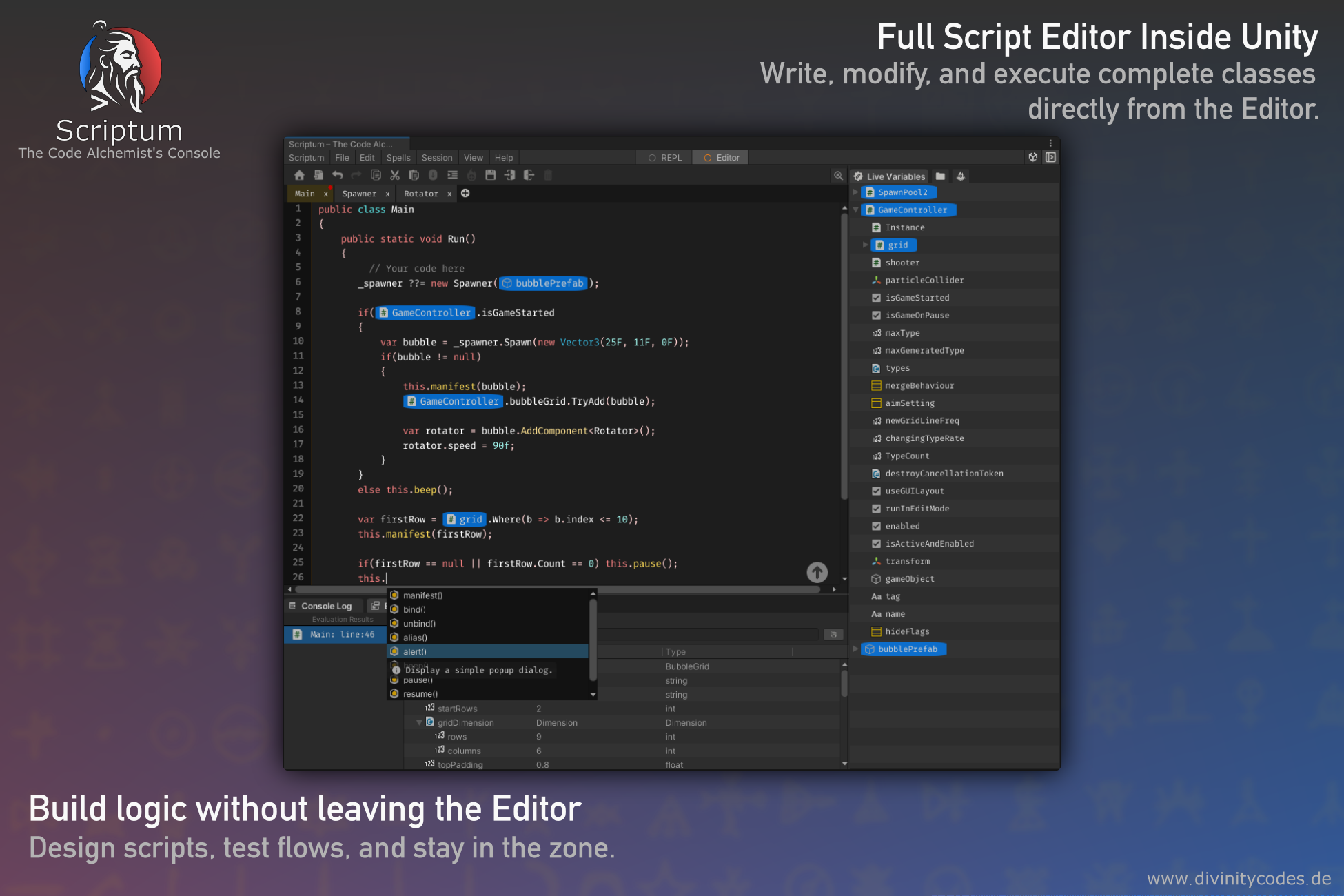
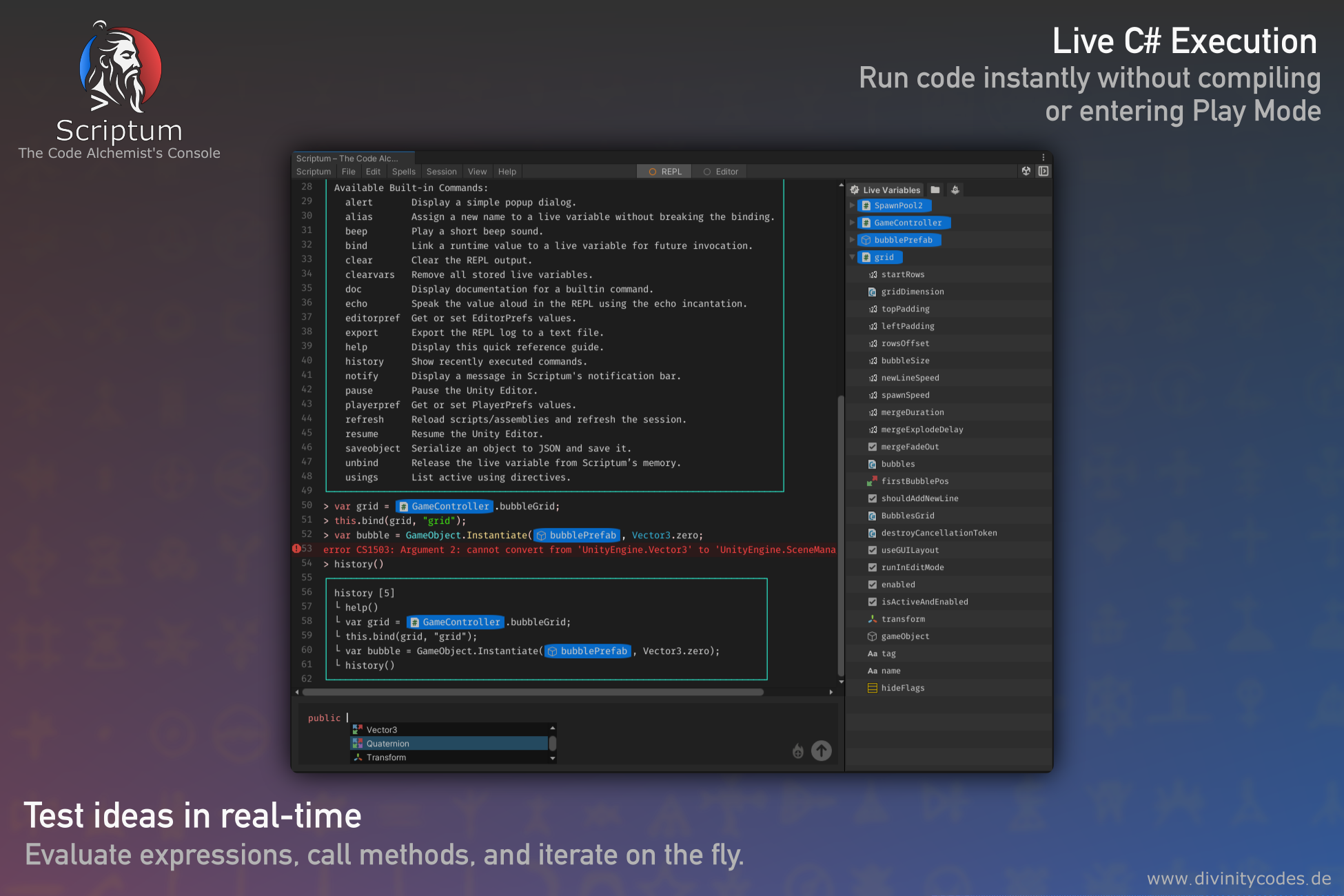
Each feature in Scriptum clearly states which mode it supports.
Basic Usage
| Action | How |
|---|---|
| Run code | Type any valid C# expression and hit Enter |
| Live Variables | Use @ to reference Live Variables |
| Quick Spells | Use # to summon the Spellbook popup |
| Built-in commands | Type this. to view available commands like echo(), manifest(), bind() |
| Multi-line code | Fully supported in Editor Mode |